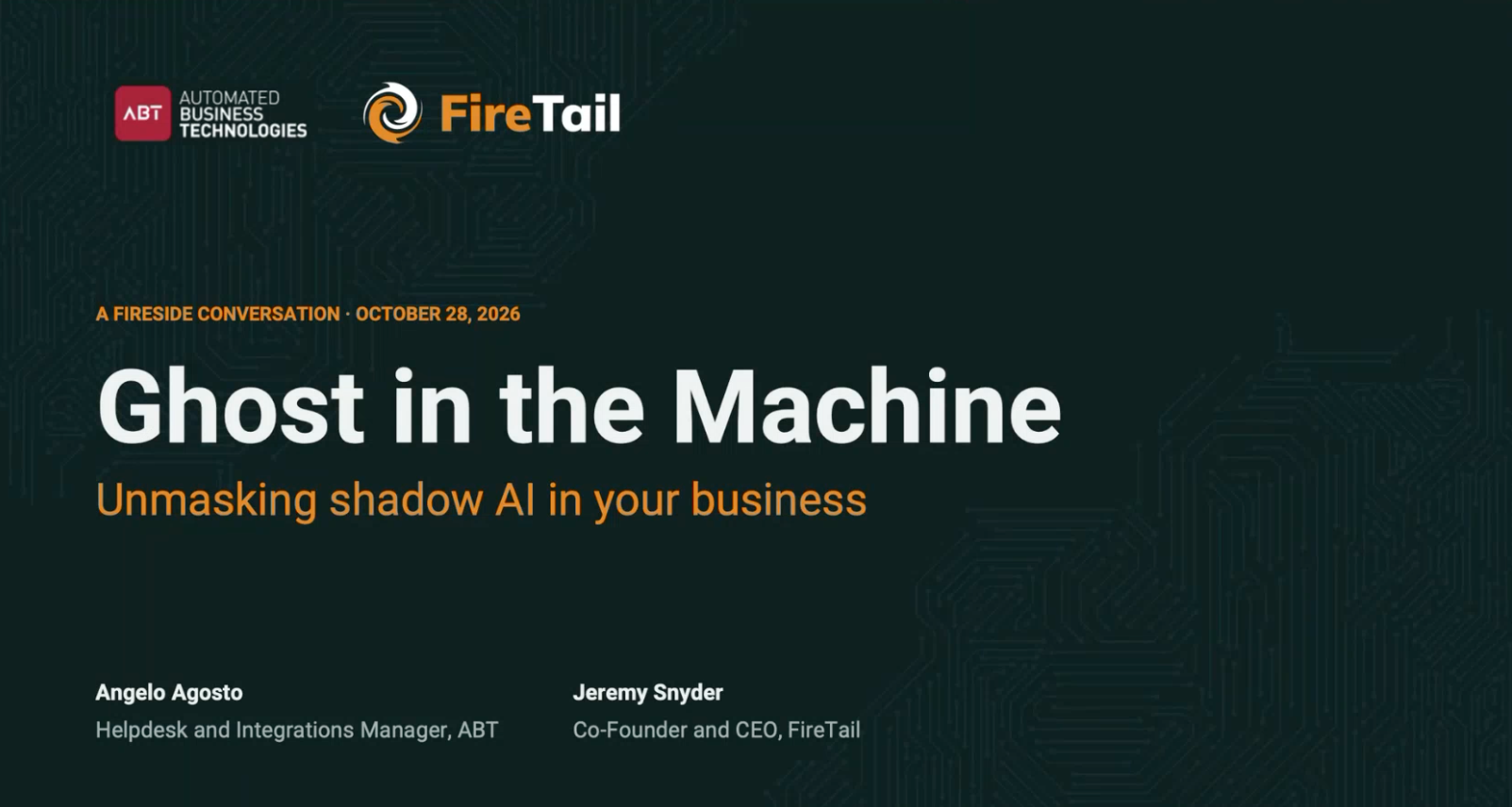
How to Find Shadow AI in Your Business: 5 Checks to Run This Week
Most businesses don’t have an AI problem. They have a visibility problem. Your team is almost certainly using AI already: drafting emails, summarizing documents, cleaning up spreadsheets, recording meetings. Most of that use is well-intentioned and genuinely useful. The risk comes from not knowing which tools are in use, who signed up for them, or what company and client data has gone into them.
If you’re new to the term, our guide What Is Shadow AI? covers the basics. This post is the practical follow-up: five checks a business owner, office manager or IT lead can run this week to see what’s actually happening.
Why visibility comes first
IBM’s 2026 Cost of a Data Breach Report found that 43% of breached organizations reported security incidents involving shadow AI, up from 20% a year earlier. Among organizations that had an AI-related breach, 92% lacked proper AI access controls. And 68% of breached organizations had no AI governance to manage AI or detect unsanctioned use: 35% had no AI policy at all, and another 33% were still writing one.
The pattern is clear. The organizations that got hurt mostly weren’t the ones using AI. They were the ones that couldn’t see it. You can’t write a sensible policy, choose the right tools, or answer your cyber insurer’s questions until you know what’s in use.
| Key point | The goal of these checks is a list, not a crackdown. If people think they’ll get in trouble, AI use moves to personal phones and becomes even harder to see. |
Check 1: Review which apps are connected to your email and files
Many AI tools, including note-takers, email assistants and writing tools, ask users to “Sign in with Microsoft” or “Sign in with Google” and then request permission to read mail, calendars or files. When an employee clicks Accept, that tool may keep access long after anyone remembers installing it. This is the single most useful place to look.
| Microsoft 365 An admin can open the Microsoft Entra admin center and go to Entra ID > Enterprise apps > All applications, then open an app and select Permissions to see what it can access and who consented. Microsoft’s guide: Review permissions granted to enterprise applications. |
Google Workspace An admin can open the Google Admin console, go to Security, then API controls, and select Manage Third-Party App Access to see the apps that have accessed your data. Each app can be marked Trusted, Limited or Blocked. Google’s guide: Review and manage third-party app access. |
What to look for: anything with “AI,” “GPT,” “notes,” “assistant,” “transcribe” or “summarize” in the name, and any app with broad permissions like reading all mail or all files. Write down the app, how many people use it, and what it can reach.
Check 2: Look at who’s joining your meetings
AI note-takers are one of the fastest-spreading forms of shadow AI because one person can sign up and the bot starts joining every meeting on their calendar, including calls with clients, patients and partners who never agreed to be recorded. The recordings and transcripts usually live on the vendor’s servers, under that individual’s personal terms.
Scroll back through the participant lists of a few recent client calls. Ask your team which note-takers they’ve tried. Then check your meeting platform’s admin settings for third-party bots and recording permissions.
|
Don’t have time to run these checks yourself?
ABT’s free AI review finds the AI tools in use across your business and shows you where data could be exposed. No cost, no obligation.
|
Check 3: Audit the AI features you already pay for
Not all shadow AI is a new tool. A lot of it arrives as an update to software you already use. Office suites, video meeting platforms, CRMs, accounting tools, help desks and design apps have all added AI assistants, and some are switched on by default or can be enabled by a single user.
Make a quick list of your core business applications and, for each one, answer three questions:
Check 4: Check browser extensions
AI browser extensions such as writing helpers, summarizers and “AI sidebars” are easy to miss because they never touch your servers. But many can read whatever is on the screen, including web-based email, CRM records, banking portals and patient systems.
Spot-check the browsers on a handful of computers across different teams. If your computers are centrally managed, your IT provider can pull a full inventory of installed extensions and set an allow list so only approved extensions can be installed.
Check 5: Ask your team, with no penalty for honest answers
Technical checks catch a lot, but not personal accounts used on a phone or a home laptop. The simplest way to find those is to ask. Send a short, anonymous survey or bring it up in team meetings:
| Four questions to ask ✓ Which AI tools have you used for work in the last month? ✓ Are you using a personal account or a company account? ✓ What kind of information have you put into them? ✓ Which tool would you most want us to approve for everyone? |
That last question matters. It tells you what your team actually finds useful, which makes it much easier to approve a good business-grade option instead of fighting a dozen personal ones.
Personal accounts are worth special attention. Free consumer AI tools may use what people type in to improve their models unless that setting is turned off. In ChatGPT, for example, the “Improve the model for everyone” setting is on by default for free and Plus accounts, according to TechRadar, while business plans have it off by default. Client data typed into a personal account also isn’t covered by any agreement your business has signed.
What to do with what you find
Once you have your list, resist the urge to block everything. Bans usually push AI use onto personal devices, where you lose all visibility. Instead, sort each tool into one of three buckets:
Then write it down in a one-page AI use policy: which tools are approved, what data never goes into AI (client records, financial details, health information, passwords and credentials), how to request a new tool, and who to ask. A short policy people actually read beats a perfect one that never gets finished. It also gives you a clear answer when your cyber insurance renewal asks how you manage AI.
Finally, make it a habit. New AI tools and features appear every month, so repeat Checks 1 and 3 every quarter. Strong basics like cybersecurity controls, MFA and tight permissions also limit how much damage any one tool can do.
Frequently asked questions
How do I find out which AI tools my employees use?
Do I need special software to find shadow AI?
Are AI meeting note-takers a security risk?
Does ChatGPT use my company’s data for training?
Should we block AI tools once we find them?
How often should we check for shadow AI?
|
Know where your AI is before it becomes a breach
ABT’s free AI review is open to Colorado and Utah businesses. No cost, no obligation.
|
| Bottom line: You can’t manage AI you can’t see. Check connected apps, meeting bots, built-in AI features and browser extensions, ask your team, and turn what you find into a short approved list and a one-page policy. Repeat every quarter. |
| Wendy Campbell, Director of Marketing Wendy leads marketing at Automated Business Technologies (ABT), a Colorado-owned managed IT, cybersecurity and office technology provider serving businesses since 2005 from offices in Centennial, Colorado Springs, Westminster and North Salt Lake City, Utah. |